
Many homeowners in Singapore rely on their security systems for peace of mind. Modern technology makes it possible to view feeds directly on mobile devices. Yet, connection problems can sometimes prevent access.
Network errors and weak Wi-Fi signals are common culprits. Physical obstructions like walls or interference from other electronics can also disrupt the signal. Keeping your system updated is crucial for maintaining a stable connection.
Testing your camera app on different devices helps identify where the issue lies. For persistent problems, professional assistance from local providers like Wen Hong is available. This guide will walk you through detailed troubleshooting steps.
Key Takeaways
- Network errors and weak Wi-Fi are primary reasons for connection failures.
- Physical obstructions and electronic interference can disrupt camera signals.
- Regular system updates are essential for maintaining connectivity.
- Testing on multiple devices helps pinpoint the source of the problem.
- Professional help from local Singapore providers is available for complex issues.
Understanding Modern Security Camera Connectivity
Modern surveillance systems offer incredible convenience through smartphone integration. This connectivity transforms your mobile device into a powerful monitoring tool. Understanding how these components interact is key to reliable operation.
How Your Phone Communicates with Security Systems
Smartphones connect to surveillance equipment through dedicated manufacturer applications. Popular brands like Google Nest, Wyze, Reolink, and Ring provide their own apps. These applications serve as the bridge between your device and the security system.
Both devices must operate on the same network for optimal performance. This ensures smooth data transmission and real-time updates. Manufacturer apps typically offer better security than third-party alternatives.
Account creation follows best practices for enhanced protection. Strong passwords and two-factor authentication add crucial security layers. Multiple users gain access through email invitations or QR code sharing.
Essential Components for Remote Viewing
Reliable remote monitoring requires several technical elements working together. A stable internet connection forms the foundation of this system. Proper network configuration maintains consistent communication between devices.
Mobile applications provide extensive customization options. Users can configure voice assistant integration and notification schedules. Motion detection settings and activity zones enhance monitoring capabilities.
Camera placement and router positioning significantly impact performance. Strategic installation reduces signal interference and improves transmission quality. These factors combine to create a seamless viewing experience.
Regular system updates ensure compatibility and security. Firmware upgrades address potential vulnerabilities and improve functionality. Maintaining current software versions prevents many common connection issues.
Common Reasons for Camera Access Issues on Your Phone
Several common technical hurdles prevent successful mobile access to surveillance feeds. Understanding these underlying causes helps identify solutions more efficiently. Most problems fall into three main categories that affect connectivity.
Network Configuration and Signal Problems
Wireless network issues represent the most frequent cause of viewing disruptions. Over 70% of failures stem from weak Wi-Fi signals or improper configuration. Router placement significantly impacts signal strength throughout your home.
The 2.4GHz frequency band offers better range but slower speeds. 5GHz provides faster transmission with reduced coverage distance. Choosing the appropriate band depends on your camera’s location relative to the router.
Common network mistakes include using mobile data instead of Wi-Fi for viewing. Electronic interference from household devices also disrupts connectivity. Microwave ovens, cordless phones, and Bluetooth devices can all cause signal degradation.
Mobile App and Software Glitches
Application-related problems account for nearly half of all remote viewing failures. Software bugs, outdated versions, and permission issues frequently disrupt functionality. These glitches prevent proper communication between your device and the surveillance system.
App crashes often occur due to memory limitations or cache corruption. Background processes may interfere with camera streaming performance. Operating system updates can sometimes break compatibility with surveillance applications.
Notification settings and background refresh configurations affect real-time alerts. Incorrect app permissions may block essential camera functions. Regular updates help maintain compatibility and security across all devices.
Power Supply and Camera Pairing Failures
Power-related problems render surveillance equipment completely unresponsive. Intermittent power supply issues cause cameras to disconnect unexpectedly. These disruptions prevent successful connection establishment during setup attempts.
Camera pairing failures during initial configuration create ongoing access problems. QR code scanning errors or incorrect network credentials cause pairing issues. These setup problems require complete reconfiguration to resolve properly.
Power adapters and Ethernet cables must provide consistent, stable connections. Voltage fluctuations can trigger protective shutdowns in sensitive equipment. Proper power management ensures reliable operation of all surveillance components.
Why Can’t I See My Security Cameras on My Phone?
Mobile monitoring disruptions often result from overlooked configuration details. These issues typically involve network synchronization or software compatibility problems. Understanding the root causes helps implement effective solutions quickly.
Quick Diagnostic Steps to Identify the Problem
Begin with basic connectivity checks when experiencing viewing difficulties. Verify both devices connect to the same wireless network. This fundamental step resolves many access problems immediately.
Router status indicators provide valuable troubleshooting information. Look for solid green lights on powerline adapters and modems. These signals confirm proper equipment operation and internet connectivity.
Device reboots often solve temporary glitches affecting camera visibility. Restart your router, camera, and mobile device sequentially. This clears cached errors and re-establishes fresh connections.
Evaluating Your Signal Strength and App Compatibility
Wireless signal quality significantly impacts remote viewing capability. Weak signals cause intermittent disconnections and failed loading attempts. Multiple connected devices further strain available bandwidth.
Software version mismatches create compatibility barriers between systems. Outdated applications cannot communicate with current camera firmware. Regular updates maintain seamless integration across all components.
Singapore’s network infrastructure requires specific configuration considerations. Local internet providers may implement unique security protocols. These settings sometimes affect external camera access attempts.
Persistent issues may indicate deeper technical problems requiring professional assessment. Local security experts understand regional network peculiarities. They provide tailored solutions for reliable mobile monitoring.
Step-by-Step Guide to Connecting Your Camera to Your Phone
The foundation of successful mobile surveillance begins with correct installation and pairing processes. Following manufacturer guidelines ensures optimal performance from the start. This systematic approach prevents common connectivity issues.
Downloading the Manufacturer’s Official App
Begin by obtaining the correct application for your specific surveillance equipment. Visit your device’s official app marketplace to download the proper software. Always verify the developer’s credentials before installation.
Search using your camera model number or manufacturer name for accurate results. Popular brands maintain dedicated applications in both major digital stores. This ensures compatibility and security for your monitoring system.
Official applications receive regular updates and security patches. Third-party apps may lack essential features or compromise system integrity. Stick with verified developer offerings for reliable performance.
Creating a Secure Account and Proper Setup
Account creation forms the backbone of your remote access security. Use email registration instead of social media login options for enhanced protection. Strong, unique passwords provide the first layer of defense.
Enable two-factor authentication whenever available for additional security. This prevents unauthorized access to your surveillance feeds. Proper account configuration ensures only approved users can view footage.
Complete all profile setup steps before attempting camera pairing. Verify email addresses and set up recovery options during this phase. These precautions safeguard your system against potential breaches.
Pairing Your Camera Using QR Code or Wi-Fi
Modern surveillance equipment typically offers multiple connection methods. QR code scanning provides the most straightforward pairing approach. Position your mobile device steadily during the scanning process.
Ensure both devices connect to the same wireless network before beginning. This synchronization is crucial for successful pairing. Network consistency prevents authentication failures during setup.
For equipment without QR capability, manual Wi-Fi configuration is available. Enter network credentials precisely as they appear on your router. Double-check all information before finalizing the connection.
Successful pairing triggers confirmation messages within the application. Test live viewing immediately after setup completion. This verification confirms proper installation and functionality.
Resolving Mobile App Connection Problems
Application permission conflicts create significant barriers to camera accessibility. These configuration errors prevent proper communication between your mobile device and monitoring equipment. Understanding permission requirements helps maintain consistent remote access.
Reviewing and Correcting App Permission Settings
Modern surveillance applications demand specific access rights for full functionality. Camera access enables live viewing while location services support geofencing alerts. Background data permissions allow continuous monitoring without interruption.
iOS users should enable Background App Refresh in system settings. Android devices require battery optimization exceptions for surveillance apps. These settings ensure your application remains active for real-time alerts.
Permission conflicts often arise from system updates or app modifications. Regular audits of access rights prevent unexpected connectivity loss. Check both application and system-level permissions monthly.
Solving Memory and Cache-Related Issues
Memory management proves critical for surveillance application performance. Most camera applications require minimum 64MB RAM allocation. Insufficient memory causes application crashes and failed connections.
Weekly cache clearance maintains optimal application responsiveness. Accumulated cache data slows performance and causes display errors. Monthly storage audits identify space constraints affecting functionality.
Singapore users with dual-SIM configurations should note potential impacts. Some devices allocate resources differently between SIM cards. This can affect application performance and network prioritization.
Enterprise solutions include Mobile Device Management (MDM) systems. These platforms streamline configuration across multiple devices. They ensure consistent permission settings and maintenance schedules.
Establish regular maintenance routines for optimal performance. Weekly cache clearing and monthly permission reviews prevent most connection issues. These practices ensure reliable access to your monitoring system.
Ensuring Wi-Fi Connection Stability for Reliable Access
Network stability determines whether your monitoring feeds remain accessible. Concrete structures in Singapore present unique challenges for wireless signals. Proper network configuration and strategic equipment placement overcome these obstacles.
Measuring and Improving Your Wi-Fi Signal Strength
HD streaming requires minimum -65dBm signal strength at camera locations. Singapore’s high-rise concrete buildings can reduce signals by 40-60%. This significant loss affects real-time feed quality.
Use these tools for accurate signal measurement:
- NetSpot for HDB floor plan heat mapping
- Wi-Fi Analyzer for Android devices
- AirPort Utility for iOS users
Strategic placement techniques boost signal performance. Sometimes you need to move camera closer to the router for better reception. Position equipment at elevated locations away from obstructions.
Channel bonding on 5GHz networks increases bandwidth by 30%. This enhancement supports multiple camera streams simultaneously. Always test different wireless channels for optimal performance.
Reducing Wireless Interference from Other Devices
Household electronics create substantial interference with surveillance equipment. Microwave ovens reduce throughput by 58% during operation. Other devices cause similar disruptions.
Keep routers at least 3 meters from these interference sources:
- Baby monitors and cordless phones
- Bluetooth speakers and wireless headsets
- Other Wi-Fi networks and electronic appliances
For multi-story HDB flats, consider central router placement. Middle-floor positioning often provides best coverage. Camera closer router placement improves connection reliability.
When coverage remains insufficient, Wi-Fi extenders or mesh systems help. These solutions create seamless networks throughout larger spaces. They eliminate dead zones affecting camera performance.
Fixing Router Problems That Affect Camera Access
Network equipment forms the backbone of reliable surveillance monitoring. Proper router maintenance ensures consistent performance for your security setup. Regular attention prevents most connectivity issues before they disrupt your feeds.
Performing Essential Firmware Updates
Router firmware updates address security vulnerabilities and improve performance. Research shows 88% of units require monthly reboots for optimal operation. Singapore providers deliver customized firmware for local network conditions.
Follow these steps for successful updates:
- Access your router settings using the correct IP address
- M1 users typically use 192.168.1.1 for administration
- StarHub subscribers should disable IPv6 before updating
- Create configuration backups before applying changes
- Reboot the device after firmware installation completes
Regular updates maintain compatibility with modern security equipment. They also patch known vulnerabilities that could compromise your system. Set calendar reminders for monthly maintenance checks.
Configuring Port Forwarding and Router Settings
Manual port configuration provides superior protection compared to automated systems. UPnP automation creates 33% of surveillance vulnerabilities according to studies. Proper setup ensures secure remote access to your feeds.
For IPv6 configurations, enable DHCPv6 prefix delegation first. Establish firewall rules for TCP ports 554 and 8000. These settings facilitate smooth data transmission for most surveillance equipment.
Consider upgrading older routers that lack modern security features. Newer models offer better compatibility with advanced security systems. They provide stronger encryption and more reliable connections for continuous monitoring.
Document your configuration settings for future reference. This practice simplifies troubleshooting and system recovery. Proper documentation ensures consistent performance across all network components.
What to Do When Your Camera Shows Offline Status
An offline camera status creates immediate concern for property monitoring. This situation requires methodical troubleshooting to restore your surveillance capabilities. Several proven techniques can quickly resolve most disconnection issues.
Device Reboot Protocols for Cameras and Routers
Power cycling remains the most effective first response to offline equipment. Research shows a 15-second restart resolves 68% of disconnection incidents. This simple process clears temporary glitches affecting device communication.
Different camera types require specific reboot procedures:
- Wireless cameras: Remove batteries or disconnect power adapter for 30 seconds
- PoE systems: Disconnect Ethernet cable before restarting the network switch
- Router reboot: Power down for 60 seconds to clear network cache completely
Singapore’s high-rise buildings often benefit from scheduled reboots. Automated restart systems prevent extended downtime in challenging environments. Weekly maintenance cycles keep equipment performing optimally.
Systematic Network Reconnection Steps
Router LED indicators provide crucial diagnostic information during reconnection attempts. Solid green lights confirm active links to surveillance equipment. Flashing or amber signals indicate connection problems requiring attention.
Follow this structured approach for network restoration:
- Verify all devices share the same network credentials
- Check signal strength at camera locations using mobile apps
- Test connectivity with mobile hotspot to isolate local network issues
- Document disconnection patterns to identify environmental factors
- Consider signal boosters for consistent high-rise building performance
Proper documentation helps differentiate hardware failures from network problems. Consistent offline patterns at specific times often indicate interference issues. Random disconnections may suggest equipment malfunctions.
Maintaining reliable access security requires regular system checks. Always verify connection stability after implementing fixes. This ensures your security camera system remains operational for continuous protection.
Addressing Firmware and Software Update Needs
Maintaining current software versions is crucial for reliable surveillance system operation. Regular updates address security vulnerabilities while enhancing monitoring performance. These maintenance routines ensure seamless connectivity between devices.
Research indicates 34% of surveillance vulnerabilities target unpatched firmware. Singapore’s SGCCTV-certified devices include verification tools for update authenticity. Always compare firmware hashes with manufacturer-provided checksums.
Checking for and Installing Camera Firmware Updates
Regular firmware updates protect your investment in monitoring technology. These updates patch security holes and improve system stability. They ensure compatibility with evolving network standards.
Follow these steps for safe firmware installation:
- Access your camera’s web interface or mobile application
- Navigate to the firmware update section in settings
- Download updates directly from manufacturer websites
- Verify digital signatures before installation
- Maintain power stability during the update process
Create backup configurations before applying updates. This practice allows quick recovery if issues occur. Test backups to ensure they function properly.
Mobile App Update Best Practices for Compatibility
Application updates maintain compatibility with your camera system. Auto-update failures occur 19% on iOS versus 27% on Android devices in tropical climates. Enable automatic updates but verify version numbers monthly.
Singapore’s PDPA regulations require specific encryption standards. Newer software versions typically support these requirements. Regular updates ensure compliance with local data protection laws.
Enterprise solutions benefit from centralized update management. These systems streamline maintenance across multiple locations. They provide consistency in security implementation.
Troubleshoot failed installations by checking network connectivity. Ensure sufficient storage space on mobile devices. Contact manufacturer support for persistent update issues.
Troubleshooting Camera Pairing and Setup Problems
Initial camera setup often presents unexpected challenges during installation. Many users encounter pairing failures that prevent successful connections. Understanding these common issues helps streamline the configuration process.
Effective QR Code Scanning Techniques
QR code scanning failures affect nearly 30% of first-time installations. Infrared lighting at 560nm wavelengths frequently interferes with successful recognition. This occurs during night vision mode activation.
Disable infrared illumination temporarily during setup procedures. Position your equipment in even lighting conditions without direct sunlight glare. Maintain a steady hand position approximately 15-20cm from the code.
Optimal scanning requires clear contrast between code and background. Avoid reflective surfaces that might distort the pattern. These simple adjustments significantly improve first-attempt success rates.
Manual Connection Methods When Automation Fails
Automated pairing systems sometimes encounter compatibility issues. WPS pairing offers faster setup but requires router support. Verify your network equipment compatibility before attempting this method.
Manual IP configuration resolves 22% of DHCP conflict problems. Access your camera settings through the manufacturer’s interface. Enter static IP addresses outside your router’s DHCP range.
For persistent connection issues, consider factory reset procedures. This clears corrupted configuration data causing pairing failures. Always reconfigure security settings after reset completion.
Security remains paramount during initial setup. Manufacturer default passwords appear in 63% of breached IoT devices. Immediately change all default credentials to unique, strong alternatives.
Enable encryption protocols within your camera settings during configuration. This protects your view security from unauthorized access attempts. Regular credential updates maintain system integrity over time.
Document all configuration changes for future reference. This simplifies troubleshooting and system recovery processes. Proper documentation ensures consistent performance across your security camera network.
Solving Common Streaming Quality Issues on Your Phone
Streaming quality issues often frustrate users trying to monitor their properties remotely. Choppy footage, lagging feeds, and pixelated images make effective surveillance challenging. Fortunately, several optimization techniques can dramatically improve your viewing experience.
Bandwidth Optimization Tips for Smoother Feeds
Modern compression technology significantly reduces data requirements. H.265 compression uses 50% less bandwidth than older H.264 standards. This efficiency allows smoother streaming even on limited mobile data plans.
Multicast streaming enables multiple viewers without consuming additional bandwidth. This feature proves invaluable for family monitoring situations. It ensures everyone stays connected without overwhelming your network.
Bitrate throttling during peak hours maintains stable performance. Schedule higher quality streams for low-usage periods. This balancing act preserves bandwidth for other household needs.
Sometimes you need to move camera settings to adaptive streaming mode. This automatically adjusts quality based on available bandwidth. It prevents complete disconnections during network congestion.
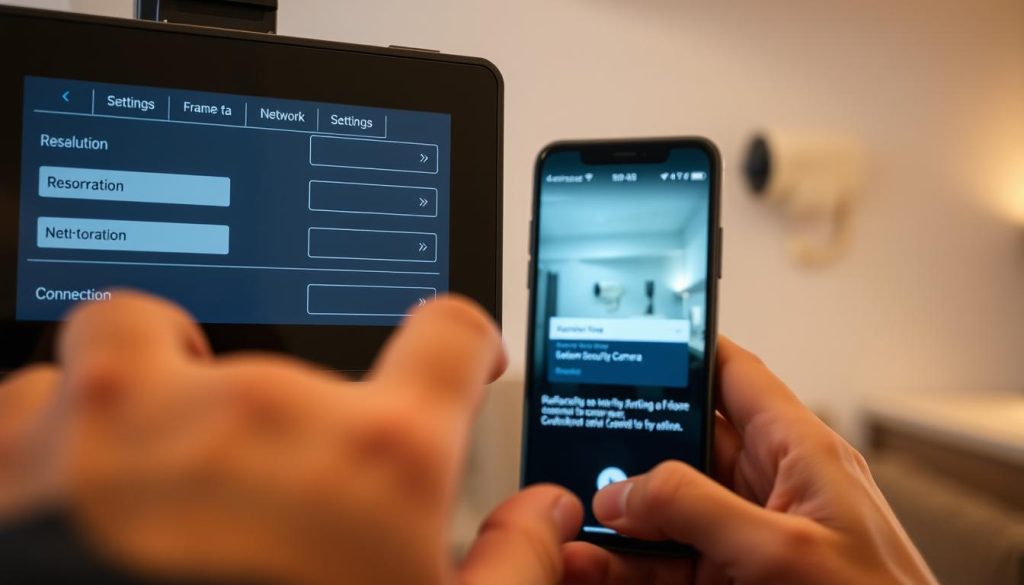
Adjusting Resolution and Frame Rate Settings
Resolution selection dramatically affects data consumption. 360p resolution uses 83% less data than 1080p while remaining usable for identification purposes. Match resolution to your phone’s screen size for optimal efficiency.
Most mobile devices display 720p resolution perfectly. Higher resolutions waste bandwidth without visual improvement. This setting provides clear images while conserving data.
Frame rate adjustments significantly impact streaming smoothness. Lower frame rates reduce bandwidth usage during movement-heavy monitoring. Higher rates provide smoother motion but consume more data.
Group of Pictures settings affect how mobile processors decode footage. Proper GOP configuration reduces processing load on your device. This prevents overheating and battery drain during extended viewing sessions.
Prioritize frame rate for monitoring moving subjects like vehicles or people. Choose higher resolution for identifying static details like license plates or facial features. This strategic approach maximizes your surveillance effectiveness.
Always configure quality settings based on your available network bandwidth. Test different combinations during various times of day. This ensures reliable connection regardless of network conditions.
Advanced Tips for Optimal Camera Performance
Taking your surveillance system to the next level requires strategic planning and fine-tuning. These advanced techniques maximize reliability and image quality for continuous monitoring. Proper implementation ensures consistent access to your feeds.
Strategic Camera and Router Placement in Your Home
Signal strength diminishes significantly with distance from your router. For 2.4GHz networks, maintain equipment within 15-20 feet for optimal performance. This reduces latency and prevents frozen footage.
Concrete walls in HDB flats can block wireless signals effectively. Position your router centrally to distribute coverage evenly throughout your home. Elevated placement often improves signal propagation.
Fixed outdoor cameras benefit greatly from Ethernet cable connections. Wired installations provide stable connectivity unaffected by weather or interference. They ensure reliable performance for critical perimeter monitoring.
Mesh network systems solve coverage challenges in larger spaces. Models with dedicated backhaul channels maintain strong connections between nodes. This creates seamless coverage throughout multi-room residences.
Adjusting In-App Settings for Better Connectivity
Resolution adjustments dramatically affect bandwidth consumption. Reducing quality to 720p or lower cuts data usage by approximately 40%. This prevents network congestion during peak hours.
Select “Balanced” mode for bitrate settings in your application. This automatically adjusts quality based on available bandwidth. It maintains connectivity during network fluctuations.
Schedule automatic nightly reboots through your camera’s settings. This refreshes connections and clears temporary glitches. Regular maintenance prevents gradual performance degradation.
Advanced troubleshooting involves testing different wireless channels. Some frequencies experience less interference in urban environments. Experimentation identifies the optimal channel for your location.
Balance video quality with network performance for reliable monitoring. Higher resolution benefits identification while lower settings improve stability. Find the sweet spot for your specific needs.
Security and Privacy Considerations for Remote Viewing
Digital monitoring systems demand comprehensive security protocols to safeguard your privacy. Remote access to surveillance feeds introduces unique challenges that require careful attention. Both technical measures and legal compliance ensure your system remains protected.
Singapore’s urban environment presents specific considerations for data protection. Understanding these factors helps maintain both security and legal compliance. Proper implementation protects your investment and personal information.
Protecting Your Account with Strong Passwords
Credential strength forms the first line of defense for your monitoring system. Research shows 38% of camera breaches exploit weak authentication methods. This vulnerability exposes your private feeds to unauthorized viewing.
Modern applications include built-in password generators for optimal security. These tools create complex combinations that resist guessing attempts. They eliminate the temptation to use memorable but vulnerable phrases.
Two-factor authentication reduces unauthorized access risks by 76% according to security studies.
Biometric login options provide additional protection on supported devices. Fingerprint or facial recognition adds physical verification layers. This combination ensures only authorized users gain system access.
Regular credential updates maintain ongoing security effectiveness. Change passwords every 90 days for optimal protection. This practice prevents prolonged exposure from potential breaches.
Understanding Data Handling and PDPA Compliance in Singapore
Singapore’s Personal Data Protection Act (PDPA) governs surveillance information handling. This legislation mandates specific requirements for data storage and processing. Compliance ensures legal operation of your monitoring system.
ASEAN regional data storage requirements affect cloud-based systems. Providers must maintain servers within Southeast Asian territories. This localization protects against international data jurisdiction issues.
Encryption standards play a crucial role in PDPA compliance. Look for padlock icons indicating end-to-end encryption implementation. This technology scrambles data during transmission to prevent interception.
Public network usage increases breach risks by approximately 70%. These open connections lack the protection of private networks. Virtual Private Networks (VPNs) with Singapore servers provide secure alternatives.
Regular security audits identify potential vulnerabilities in your system. These checks verify compliance with evolving regulations. They ensure continuous protection for your surveillance data.
Documentation practices support PDPA compliance requirements. Maintain records of data access and security measures. This demonstrates responsible handling of monitoring information.
Best Practices for Monitoring Your Cameras Remotely
Mastering remote surveillance requires smart configuration and regular maintenance. Proper setup ensures reliable alerts and efficient operation of your monitoring equipment. These techniques help maintain constant awareness of your property.
Setting Up Effective Motion Detection and Alerts
Motion detection settings dramatically impact your monitoring experience. AlfredCamera Premium users report 65% fewer false alerts after proper optimization. This improvement makes your security system more reliable and less annoying.
Customize alert thresholds based on your environment’s noise levels. Urban areas typically need higher sensitivity settings than quiet suburbs. This adjustment prevents missed events while reducing unnecessary notifications.
Create exclusion zones within your application to ignore repetitive movements. These areas might include waving trees or busy sidewalks. This feature focuses alerts on important activity zones.
Proper motion zone configuration reduces false alerts by 40-60% according to industry studies.
Test different sensitivity levels during various times of day. Morning and evening lighting conditions affect detection accuracy. Regular adjustments maintain optimal performance throughout changing conditions.
Scheduling Camera Activity and System Checks
Strategic scheduling extends battery life and improves system efficiency. Continuous monitoring drains batteries three times faster than motion-activated modes. This difference is crucial for wireless equipment operation.
Sync recording times with your daily routine using the schedule tab. Activate full monitoring during away hours or nighttime. Reduce activity during known quiet periods to conserve resources.
Establish regular system check routines for maintenance. Weekly verification ensures all components function correctly. This practice prevents unexpected failures during critical moments.
Create automation rules for enhanced security responses. Program lights to activate when motion is detected. This feature can deter potential intruders while alerting homeowners.
Review and adjust your schedules seasonally. Daylight changes and weather patterns affect monitoring needs. Regular updates keep your security system optimized year-round.
Document your configuration settings for future reference. This simplifies troubleshooting and system recovery. Proper documentation ensures consistent performance across all monitoring components.
Implementing Solutions for Seamless Phone Monitoring
Achieving flawless remote viewing requires strategic implementation and consistent upkeep. Proper setup forms the foundation of reliable surveillance access from mobile devices.
Hybrid systems using both dedicated cameras and repurposed phones offer flexible coverage options. Smart home integration enhances convenience through voice commands and automated routines.
Singapore residents benefit from local technical support and PDPA-compliant cloud storage solutions. Regular maintenance prevents future connection issues and ensures long-term performance.
Brands like AlfredCamera demonstrate how proper configuration achieves 99.8% uptime. Proactive system checks and timely updates maintain optimal camera access over time.
For comprehensive implementation guidance, consult professional security camera installation services. They provide tailored solutions for Singapore’s unique network environment.
Prioritize connectivity and maintenance to ensure uninterrupted property monitoring. This approach delivers peace of mind through consistent, reliable performance.