
A malfunctioning security camera can leave your property vulnerable. It’s a common frustration for homeowners and businesses in Singapore. This guide provides a clear, expert-backed path to diagnose and fix common CCTV problems.
We cover systematic checks for power, network, and physical connections. You’ll learn steps relevant for wired, wireless, and PoE systems. Singapore’s humid climate can cause unique issues with equipment, which we address.
The goal is to restore your surveillance system quickly. From blurry video to complete failure, structured troubleshooting finds the root cause. For persistent problems, knowing when to call a professional, like the experts detailed in this guide on what to do if your CCTV camera is not, is crucial for long-term security.
Key Takeaways
- A structured approach is key to efficiently diagnosing camera faults.
- Always start with basic checks for power and physical connections.
- Network and configuration errors are common causes of video loss.
- Environmental factors in Singapore can accelerate CCTV system wear.
- Regular maintenance and firmware updates prevent many common issues.
- Some complex problems require professional solutions for reliable security.
Start Your Troubleshooting with Basic Power Checks
Power irregularities account for the majority of surveillance equipment failures. Statistics show nearly 70% of malfunctions originate from the power supply. This makes it the logical first checkpoint when your security camera stops working.
A methodical approach here saves time. Begin with simple visual and physical inspections before assuming complex system faults.
Inspecting the Power Cord and Connections for Damage
Examine all cables and connections thoroughly. Focus on areas near plugs and joints, where 66% of power supply failures occur. Look for fraying, cuts, or exposed wiring.
In Singapore’s humid climate, moisture is a silent enemy. Check for green or white corrosion on metal connectors. This indicates water damage and requires immediate part replacement.
Always use waterproof connectors for outdoor installations. Ensure each plug is fully seated and secure. A loose connection can cause intermittent power loss, leading to unstable footage.
Testing Electrical Outlet Functionality
Your camera might be fine—the outlet could be dead. Plug a working device like a lamp or phone charger into the same socket. If it doesn’t work, you’ve found the problem.
Testing the outlet first eliminates the power source as a variable, narrowing the diagnosis significantly.
Consider power fluctuations in urban grids. Using a surge protector guards your security camera against voltage spikes. These can cause random reboots or complete device failure.
For setups with multiple units, ensure balanced distribution. An overloaded circuit might trip, cutting monitoring for several cameras at once.
Checking Battery Health in Wireless CCTV Cameras
Wireless models depend entirely on battery supply. Performance drops sharply when charge falls below 20%. Efficiency can decrease by 40%, affecting signal strength and recording quality.
Establish a replacement schedule every 12 to 18 months. Don’t wait for complete failure. Proactive swaps prevent unexpected loss of surveillance coverage.
During Singapore’s monsoon season, check batteries more frequently. High humidity can accelerate discharge rates. Keep spare batteries on hand for quick changes.
Document any issues related to power. Note if cameras reboot during heavy rain or at specific times. This pattern helps diagnose deeper electrical problems.
How do I troubleshoot my CCTV camera? Verifying Network Connectivity
Nearly one in four surveillance failures stems from network-related issues. A disconnected camera cannot send its video feed to your recorder or the cloud. This makes checking your network the logical next step after power.
Begin by identifying your setup. Wired and wireless security camera systems have different checkpoints. A methodical approach isolates the problem quickly.
Testing Wired and Wireless Connection Strength
For wired CCTV, inspect the Ethernet connections. Look for crimps, cuts, or loose plugs. Ensure the network switch or NVR is powered on and has active link lights.
Wireless models depend on a strong Wi-Fi signal. Use a phone or network tool to check strength at the camera’s location. In Singapore’s dense urban areas, walls and other networks can cause interference.
Consider a dual-band router to reduce congestion. The 2.4GHz band travels farther, while 5GHz offers faster data speeds with less interference.
Pinging Your Camera’s IP Address for Response
This test confirms if your system can communicate with the camera. Find the device’s IP address in your NVR or router settings.
Open Command Prompt on a connected computer. Type ping [IP address] and press Enter.
A successful reply shows the camera is online. Response times under 100ms are ideal for smooth HD video streaming.
No reply or “Request timed out” means a connection failure. This directs your troubleshooting to cables, Wi-Fi, or the device itself.
Resolving IP Address Conflicts on Your Network
Conflicts happen when two devices get the same IP. Your security camera may disconnect or behave erratically. An IP scanning tool can find duplicates on your network.
The best solutions prevent future problems. Assign a static IP to each CCTV unit. You can do this in the camera’s menu or via your router’s DHCP reservation feature.
For larger surveillance deployments, proper subnet planning is key. Ensure all cameras and your recorder are on the same logical network segment.
- Document your IP assignments. Keep a simple list of each device and its address. This saves time during future checks or expansions.
- Update network equipment. Keep your router’s firmware current. This patches security holes and improves stability for all connected devices.
- Prioritize surveillance traffic. Enable Quality of Service (QoS) on your router. This setting ensures your video streams get bandwidth priority over other internet use.
Examine Physical Cabling and Camera Components
Signal loss often traces back to compromised wiring rather than electronic failures. Statistics show approximately 80% of surveillance signal failures originate from physical damage. This makes visual inspection a critical diagnostic step.
Begin with a systematic examination of all transmission lines. Look for visible defects before assuming complex system faults. Regular checks prevent unexpected loss of coverage.
Identifying Frayed or Damaged Video Cables
Cracked insulation and exposed wires are clear warning signs. These defects allow moisture ingress, causing signal degradation. In tropical climates like Singapore, corrosion accelerates cable failure.
Focus on connection points and areas near joints. These spots experience the most stress. BNC connectors fail three times more often than RJ45 types in humid environments.
Use specialized testing equipment for hidden problems. A Time Domain Reflectometer (TDR) identifies breaks in long cable runs. This tool finds impedance mismatches invisible during visual checks.
Securing Loose BNC or RJ45 Connections
Loose terminals cause intermittent signal drops and flickering video. Tighten all BNC or RJ45 connections firmly. Check junction boxes for wear and proper seating.
Follow Singapore’s SS 589 standards for outdoor installations. These regulations mandate waterproof seals on all external connections. Proper implementation prevents weather-related failures.
A secure connection maintains signal integrity, ensuring reliable video transmission even during heavy rainfall.
Consider upgrading connection hardware for older systems. Modern shielded connectors offer better protection against electromagnetic interference. This improves overall system reliability.
Checking for Weather-Related Damage in Singapore’s Climate
Singapore’s humidity and monsoon rains challenge outdoor surveillance equipment. Greenish corrosion on copper contacts indicates moisture damage. This compromises signal quality and can lead to complete failure.
Inspect waterproof seals biannually, preferably during drier months. Look for cracked or shrunken gaskets. Replace any compromised seals immediately to prevent water ingress.
Coastal installations face additional risks. Salt spray accelerates corrosion on metal components. Use marine-grade materials for these environments.
Implement preventive measures against climate effects:
- Apply dielectric grease to connectors as a moisture barrier
- Use heat-shrink tubing for critical outdoor connections
- Install conduits or UV-resistant sleeves for cable protection
- Upgrade to shielded CAT6 cables for new installations
These cables outperform traditional coaxial types in durability. They maintain better signal integrity for high-resolution video systems.
Document all cable routes and connection points. Create a cabling map for future reference. This simplifies troubleshooting when signal issues arise unexpectedly.
For persistent cabling problems, professional assessment may be necessary. Experts can identify common CCTV camera issues related to installation quality. Proper cable management extends the lifespan of your entire surveillance network.
Reset Your CCTV Camera to Factory Default Settings
Factory resets serve as a powerful last resort for resolving stubborn configuration conflicts in surveillance equipment. When persistent software glitches defy other fixes, this action provides a clean slate. It restores your security device to its original operational state.
Consider this step after exhausting basic checks. It effectively eliminates accumulated errors that simpler troubleshooting cannot fix. The process wipes all customizations, returning the unit to its out-of-box condition.
Locating and Using the Physical Reset Button
Most surveillance cameras feature a recessed reset button near the power port. You typically need a paperclip or similar tool to access it. The button is small and designed to prevent accidental activation.
Manufacturers specify different press durations for successful restoration. Hikvision models require holding the button for 30 seconds. Dahua devices typically need 15 seconds of continuous pressure.
Follow these steps for a safe reset procedure:
- Ensure the camera receives stable power during the entire process.
- Insert your tool into the reset pinhole until you feel resistance.
- Apply steady pressure for the manufacturer’s specified duration.
- Release the button when indicator lights flash in a reset pattern.
- Wait for the device to reboot completely before reconfiguration.
A proper factory reset clears deep-seated software conflicts, often resolving performance issues that persist after other fixes.
Understanding What Settings Will Be Cleared
The restoration process erases all user-configurable parameters. Your motion detection zones and sensitivity settings revert to factory defaults. Scheduled recording profiles and storage preferences are completely wiped.
Network configurations undergo complete erasure. Wi-Fi passwords and assigned IP addresses return to their original states. Port forwarding rules and remote access setups require reconfiguration.
Document your original settings before proceeding whenever possible. Create a backup list of critical configurations. This documentation expedites the restoration of your surveillance system capabilities.
Reconfiguring Basic Parameters After the Reset
Begin with time zone settings and daylight saving adjustments. Accurate timestamping is crucial for all recorded footage. Singapore follows GMT+8 without seasonal changes.
Reprogram motion detection using local urban patterns as reference. Optimize sensitivity for Singapore’s specific activity levels. This minimizes false alerts from routine neighborhood movement.
Re-establish network connections with new security protocols. Assign static IP addresses to prevent future conflicts. Configure port forwarding if remote viewing is necessary for your setup.
Restore recording schedules aligned with your security needs. Avoid outdated compression formats like MJPEG that strain storage. Modern codecs like H.265 provide better quality with smaller file sizes.
Verify firmware compatibility before and after the reset process. Incompatible versions may cause boot loops or other complications. Professional assistance is recommended for complex multi-camera system restorations.
Update Camera Firmware and Surveillance Software
Regular firmware updates represent a critical defense layer against cyber vulnerabilities in modern security infrastructure. Outdated software exposes your monitoring network to approximately 67% of known digital breaches. Manufacturers continuously release patches to fix bugs and enhance performance capabilities.
These updates address security flaws that hackers exploit. They also improve your camera’s stability and add new features. Keeping your system current ensures reliable surveillance and protects sensitive data.
Checking Your Current Firmware Version
Begin by accessing your security camera’s administrative interface. Most models provide a web portal or mobile application for this purpose. Navigate to the settings or system information section.
Locate the firmware version number displayed on the screen. Compare this against the latest release listed on the manufacturer’s official website. Document your current version before proceeding with any changes.
Knowing your firmware version is the first step toward maintaining a secure and functional surveillance network.
Create a simple spreadsheet tracking each device in your setup. Include model numbers, IP addresses, and firmware versions. This documentation simplifies future maintenance and troubleshooting efforts.
Downloading Official Updates from the Manufacturer
Always obtain firmware files directly from the brand’s verified support portal. Third-party websites may distribute malware-infected files that compromise your entire network. These unauthorized downloads can create serious security problems.
Verify the file’s checksum before transferring it to your camera. This mathematical fingerprint confirms the download’s integrity. Corrupted files during transfer are a common cause of update failures.
Ensure the firmware matches your exact camera model and hardware version. Installing incompatible software can permanently damage the unit. Double-check model numbers to avoid this costly mistake.
Following Safe Update Procedures to Avoid Bricking
Approximately 33% of firmware update failures result from power interruptions or network instability. Begin by ensuring your security camera has stable power throughout the process. Use an uninterruptible power supply for critical installations.
Connect your computer directly to the camera or use a reliable local network. Avoid performing updates over unstable Wi-Fi or internet connections. Follow these steps for a safe installation:
- Back up your current configuration settings to a local drive.
- Upload the verified firmware file through the camera’s interface.
- Do not power off or restart the device during the update.
- Wait for the completion message before testing the system.
Test new firmware on a single unit before deploying it across multiple devices. This identifies potential compatibility issues before widespread implementation. If an update fails and “bricks” your camera, consult the manufacturer’s recovery guide.
For complex multi-vendor systems, consider professional update management services. These solutions ensure coordinated updates across different models. They maintain your surveillance capabilities without disrupting cloud monitoring operations.
Troubleshoot CCTV Camera Image Quality Issues
Blurry or distorted surveillance footage often results from correctable issues with camera settings and maintenance. Poor image clarity directly impacts identification accuracy and overall security effectiveness. Systematic approaches resolve most common visual problems.
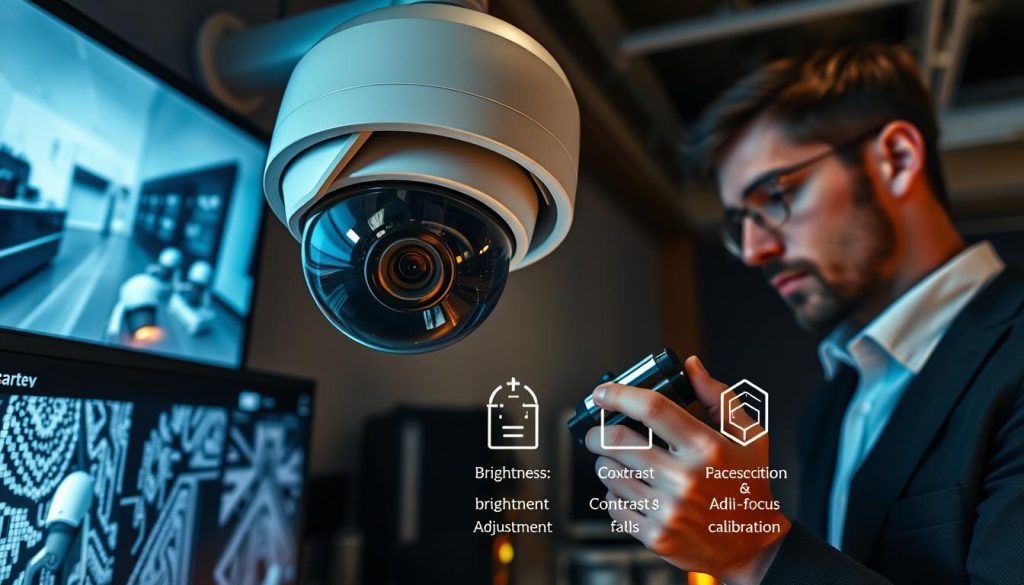
Several factors influence final video output. These include environmental lighting, lens cleanliness, and proper positioning. Addressing each element improves your surveillance system’s capabilities.
Adjusting White Balance for Accurate Colors
Proper white balance dramatically improves color accuracy. It ensures objects appear with their true colors in recorded footage. Manual calibration often outperforms automatic modes in challenging conditions.
Indoor and outdoor environments need different settings. Tungsten and fluorescent lighting require specific presets. Daylight settings work best for exterior camera placements.
Manual white balance calibration in mixed-light environments can improve color accuracy by up to 90% compared to automatic modes.
Singapore’s urban landscape presents unique challenges. Mixed lighting from streetlamps, building LEDs, and vehicle headlights confuses auto settings. Manual adjustment provides consistent results across different times.
Follow these steps for optimal white balance:
- Access your security camera’s image settings menu.
- Select manual white balance mode instead of auto.
- Point the camera at a neutral white or gray surface.
- Adjust until colors appear natural and accurate.
- Save these settings for consistent video quality.
Cleaning Camera Lenses Properly for Clarity
Dirty lenses cause approximately 80% of image quality complaints. Dust, pollen, and moisture accumulate on exterior surfaces. Regular maintenance prevents gradual degradation of footage clarity.
Singapore’s humid climate accelerates lens contamination. Salt spray near coastal areas creates additional challenges. Monthly inspections catch problems before they affect video quality.
Use proper cleaning materials for best results. Microfiber cloths remove particles without scratching delicate coatings. Lens solution dissolves stubborn grime without leaving residues.
Avoid common cleaning mistakes:
- Never use paper towels or rough fabrics
- Avoid household glass cleaners with ammonia
- Don’t apply excessive pressure during cleaning
- Check for internal condensation after heavy rain
Establish a maintenance schedule based on location. High-traffic areas need more frequent attention. Document cleaning dates to track performance trends.
Optimizing Camera Positioning for Local Lighting Conditions
Camera placement significantly affects final image quality. Poor positioning creates backlighting, glare, and shadow problems. Strategic placement maximizes available light for clear footage.
Calculate lux ratings for each surveillance location. This measures illumination intensity at the camera’s viewpoint. Different environments require specific light sensitivity settings.
Singapore’s architecture creates extreme lighting contrasts. High-rise shadows darken alleys while sunlit facades overwhelm sensors. HDR mode balances these extremes effectively.
Recommended lux settings for common locations:
- Sunlit building facades: 10,000+ lux
- Parking garages: 1-10 lux
- Residential corridors: 50-100 lux
- Low-light alleys: 0.1-1 lux
Test camera positioning at different times using preview functions. Morning sun creates different challenges than evening shadows. Time-lapse reviews identify lighting issues that occur only during specific hours.
Adjust focus and zoom after any repositioning. Ensure optimal sharpness for identifying critical details. Faces and license plates should remain clear in all recorded video.
Document image quality settings for each camera location. Create reference profiles that can be restored quickly. This simplifies maintenance and ensures consistent surveillance data collection.
Solve Common Night Vision Problems
Clear nighttime footage depends on properly functioning infrared components and optimal configuration settings. When ambient light disappears, your security camera relies on infrared technology to capture usable video.
Singapore’s tropical environment presents unique challenges after dark. High humidity and frequent rainfall affect infrared performance. Consistent night vision is essential for complete 24-hour surveillance coverage.
Verifying IR Filter Operation and Automatic Switching
Infrared filters are mechanical shutters that switch between day and night modes. Faulty filters cause approximately 50% of all night vision failures in CCTV systems. These components should operate silently and automatically.
Test filter functionality by covering the camera’s light sensor with your hand. A working filter will produce a soft click as it transitions. Listen for this sound during both activation and deactivation cycles.
Proper IR filter operation ensures your camera captures clear images regardless of lighting conditions, maintaining surveillance effectiveness through the night.
Check automatic switching settings in your camera’s configuration menu. Ensure the mode is set to “Auto” rather than forced day or night. Manual overrides can prevent normal infrared activation.
Schedule regular filter tests during evening hours. Document any delays or failures in the switching mechanism. This data helps identify deteriorating components before complete failure occurs.
Clearing Obstructions from Infrared Light Paths
Spider webs and insect nests are major obstacles for infrared LEDs. In Singapore’s humid climate, silk buildup can reduce IR effectiveness by up to 70%. Monthly maintenance prevents this common problem.
Use compressed air to clean around infrared emitters. Hold the can upright and use short bursts to dislodge debris. Avoid touching the LEDs directly with any tools.
Inspect the entire light path during daylight hours. Look for cobwebs, dust accumulation, or water spots on the lens. These obstructions scatter infrared illumination, creating hazy footage.
Consider installing spider guards around vulnerable cameras. These mesh screens prevent insects from building webs directly over infrared components. They maintain clear video quality with minimal maintenance.
Calibrating Night Mode Sensitivity and IR Distance
Over-sensitive infrared settings create “whiteout” effects in confined spaces. This occurs when the camera over-illuminates nearby objects. Proper calibration balances illumination across the entire scene.
Enable Smart IR features in advanced system settings. This technology automatically adjusts infrared intensity based on subject distance. It prevents common issues like overexposed foregrounds.
Limit maximum IR distance to 25 meters for most urban applications. Longer ranges often cause unnecessary light pollution and reduce LED lifespan. Adjust this setting based on your specific monitoring area.
Implement these calibration steps:
- Access the night mode settings in your camera’s interface.
- Set IR distance to match your actual surveillance requirements.
- Enable Smart IR or similar auto-balancing features.
- Test during actual night conditions for optimal results.
- Adjust sensitivity based on observed performance.
Position infrared emitters at 15-30 degree angles. This minimizes backscatter from rain or fog. Singapore’s common atmospheric conditions can otherwise degrade night performance.
Enable moonlight mode for urban areas with street lighting. This feature uses available ambient light before activating infrared LEDs. It extends component lifespan while maintaining adequate vision quality.
Document all night mode settings for each security camera. Create reference profiles that can be restored quickly. This simplifies future troubleshooting when image quality declines.
Schedule regular checks during different weather conditions. Heavy rain affects infrared differently than clear nights. Performance variations may indicate calibration drift or component wear.
For critical areas, consider hybrid solutions combining standard CCTV with thermal imaging. This approach ensures reliable surveillance regardless of environmental conditions. It provides an additional layer of security during complete darkness.
Address Recording and Storage System Failures
Storage system malfunctions rank among the most frustrating CCTV problems for property owners. When recording stops, critical security gaps appear in your surveillance coverage. These failures often stem from capacity limits or configuration errors rather than hardware defects.
Proactive management prevents unexpected data loss. Regular checks maintain your system’s recording capabilities. Singapore’s PDPA regulations add legal requirements for footage retention periods.
Verifying Storage Device Capacity and Health
Storage exhaustion causes most recording failures. A 1TB drive recording 1080p video 24/7 fills in approximately 30 days. This timeframe shrinks with higher resolution cameras or multiple units.
Monitor available space through your NVR or DVR interface weekly. Set automated alerts when capacity drops below 15%. This warning prevents complete storage exhaustion.
Check drive health indicators regularly. Most surveillance systems display SMART data for connected drives. Look for reallocated sectors or high temperature readings.
Regular capacity monitoring prevents the most common recording failure: unexpected storage exhaustion during critical security events.
Implement a replacement schedule for aging drives. Mechanical hard disks typically last 3-5 years in continuous surveillance use. Solid-state drives offer better durability for high-write environments.
Checking and Adjusting Recording Schedule Settings
Optimized schedules maximize storage efficiency. Motion-activated recording saves approximately 60% capacity versus continuous capture. This approach extends your retention period significantly.
Test sensitivity settings against real conditions. Singapore’s frequent rain may trigger false alerts. Adjust thresholds to ignore weather patterns while capturing genuine security events.
Configure priority recording for high-risk hours. Program your system to use maximum quality during nighttime or low-traffic periods. Balance this with lower-resolution general coverage.
Review these essential schedule components:
- Motion detection zones: Define specific areas for activation
- Quality settings: Adjust resolution based on time and importance
- Retention policies: Automate deletion after compliance periods
- Backup routines: Schedule critical footage transfers
Document all schedule configurations. Create reference profiles for different security scenarios. This simplifies adjustments when your monitoring needs change.
Formatting Corrupted Storage Drives
Corruption manifests through specific symptoms. Frozen playback and missing timestamps indicate drive issues. Random file access failures suggest deeper data structure problems.
Attempt recovery before formatting when possible. Specialized software can rescue critical footage from damaged drives. This preserves evidence that might be legally required.
Reformatting often resolves persistent errors. This process creates a fresh file system for your storage device. It eliminates accumulated file system corruption.
Follow this safe formatting procedure:
- Back up any recoverable footage to alternate storage
- Access your NVR/DVR storage management interface
- Select the problematic drive for formatting
- Choose the appropriate file system (typically NTFS or ext4)
- Allow the process to complete without interruption
- Verify the drive appears healthy in system diagnostics
Consider hybrid storage architectures for critical installations. Combine local NVR systems with cloud backup for important footage. This approach provides redundancy against local failures.
Maintain compliance with Singapore’s 30-day retention requirement. Automated deletion policies manage this efficiently. They remove outdated footage while preserving legally mandated records.
Document all storage maintenance activities. Keep records of drive replacements and formatting dates. This history helps diagnose recurring problems in your security camera infrastructure.
When to Seek Professional CCTV Support in Singapore
Certain technical challenges demand specialized expertise beyond standard maintenance procedures for reliable resolution. Complex system integration or cybersecurity audits often exceed DIY capabilities. Certified technicians resolve approximately 95% of technical failures within hours using advanced diagnostic tools.
Consider professional assistance for regular maintenance that prevents 80% of critical system failures. Schedule annual checkups for aging surveillance systems in Singapore’s demanding climate. This approach ensures warranty compliance and maintains optimal performance for your security investment.
Emergency response services offer guaranteed resolution windows, crucial for business security where monitoring gaps create liability. Professional cybersecurity audits and firmware upgrades protect network-connected cameras from evolving digital threats. Establishing ongoing relationships with reputable support providers ensures prompt assistance when urgent issues arise.