
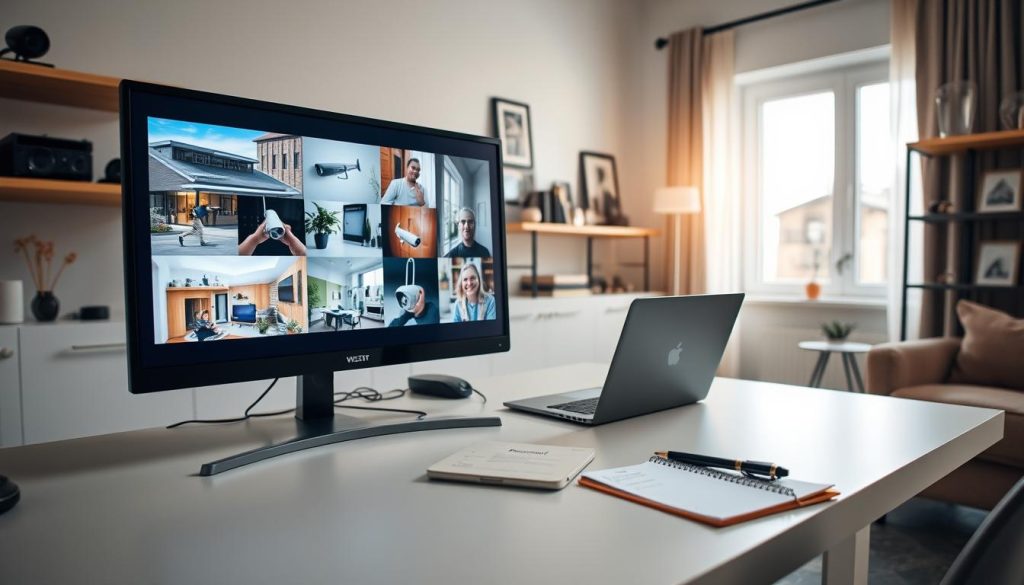
Keeping an eye on your property is now easier than ever. Modern security technology lets you watch live footage from anywhere. This guide explains the process for remote viewing.
Remote access to your surveillance system is a powerful tool. It connects your cameras to the internet. This setup allows for real-time monitoring of your home or business.
You gain peace of mind and enhanced security. Whether you use IP cameras or a DVR system, the core principle is the same. Your device must be on a network and configured correctly.
This article walks you through the essential steps. You will learn about the necessary prerequisites. We cover two main methods: using a dedicated app and a web browser. Concepts like port forwarding will also be explained.
Key Takeaways
- Remote monitoring provides live and recorded video access from any location.
- An active internet connection is the fundamental requirement for this functionality.
- Most modern security systems, including IP and some analog setups, support web access.
- Primary methods involve manufacturer-provided mobile applications and web browser interfaces.
- Proper network configuration, such as router settings, is often necessary for setup.
- Remote surveillance offers significant benefits like increased peace of mind and proactive security.
- Following a structured guide ensures a secure and reliable connection to your cameras.
Understanding Remote CCTV Access and Its Benefits
The capability to view surveillance footage from afar transforms a static security setup into a dynamic monitoring tool. This function is known as remote CCTV access.
It allows you to connect to your security cameras over the internet. You can watch live video or review recorded footage from any location.
The primary advantage is enhanced security. You gain the power to observe your property or business operations around the clock. This real-time oversight enables an immediate response to any unusual activity.
Alerts can be sent directly to your smartphone or computer. You are always informed, providing significant peace of mind.
Remote viewing also offers remarkable convenience for daily life. Verify that children have returned home safely. Monitor pet behavior or confirm a delivery has arrived. All this is possible without being physically present.
For commercial settings, this technology is a powerful management asset. It supports loss prevention and employee oversight. Accessing multiple camera feeds at once boosts operational efficiency.
Modern surveillance system features expand these core benefits. Look for integrated two-way audio, smart motion detection, and cloud storage. These features make remote access more versatile and useful.
Understanding these points underscores the value of a connected CCTV system. Remote monitoring is no longer a luxury. It is an indispensable part of a robust security strategy for any home or business.
What You Need Before You Start: Prerequisites for Online Viewing
The foundation for reliable online access to your surveillance system is built on two pillars: proper gear and network knowledge. Gathering the right components and understanding a few technical concepts ensures a smooth setup process.
This preparation phase is critical. It prevents common connection errors and saves time.
Essential Hardware: Cameras, Recorders, and Routers
Your physical security setup forms the backbone of remote access. You will need several key pieces of equipment.
First, you require compatible CCTV cameras. These can be modern IP cameras or analog models. Ensure they are correctly installed in their desired locations.
Each camera must have a stable power source. They also need a link to the central recorder.
The recorder is the system’s brain. It manages all video footage. You will use either a Network Video Recorder (NVR) for IP cameras or a Digital Video Recorder (DVR) for analog ones.
This device connects directly to your local network. Use an Ethernet cable to link the recorder to your router.
Your router is the gateway to the internet. It must have an active broadband connection. A modern router that supports necessary settings like port forwarding is ideal.
Finally, do not forget the necessary cables. These include power adapters, Ethernet cables, and possibly BNC cables for analog systems.
Network Fundamentals: IP Addresses, Ports, and Internet Connectivity
Your local network allows devices to communicate. Understanding its basics is crucial for remote viewing.
Every device on your network, including each camera and the DVR/NVR, has a unique local IP address. Think of it as a house number for your security system.
Ports are like specific doors on that house. The HTTP port (often port 80) is commonly used for accessing the camera‘s interface.
For a stable connection from outside your home, your internet service must have sufficient upload bandwidth. Low upload speed causes lag and poor video quality.
You must also gather specific information before configuration:
- The local IP address of your camera or recorder.
- The HTTP port number it uses.
- Your router’s admin login credentials.
Your router must support port forwarding. This setting tells your router which local device to connect to an external request.
Familiarize yourself with these terms:
- Static IP vs. Dynamic IP: A dynamic IP can change, while a static IP remains fixed. Remote access is easier with a static IP from your ISP.
- Dynamic DNS (DDNS): This service provides a web address for your system if your public IP address changes.
Always verify your entire system works perfectly on the local network. Confirm you can see live feeds on a monitor connected to the recorder. Only then should you proceed to configure remote access.
How Can I Check My CCTV Camera Online? The Two Primary Methods
The path to viewing your security feed online diverges into two clear, well-traveled routes. Each method connects your camera system to the internet for remote viewing.
Your choice depends on technical comfort and desired features. One path offers plug-and-play simplicity. The other provides direct control and advanced settings.
Both techniques deliver live video and recorded footage to your smartphone or computer. You gain true internet access to your surveillance system from anywhere.
Method 1: Using the Manufacturer’s Mobile App (P2P/UUID)
This approach leverages modern technology for a hassle-free setup. Most new CCTV cameras and recorders support it.
The app method uses Peer-to-Peer (P2P) connectivity. Your device is identified by a Unique ID (UID) number or a QR code.
This ID acts as a digital address for the camera. It allows the manufacturer’s cloud service to broker a secure connection. No complex network configuration is needed on your router.
The steps are consistently user-friendly. First, download the official app for your security camera brand. Install it on your smartphone or tablet.
Open the application and create an account. Then, add your camera or DVR by scanning its QR code or entering the UID.
Once registered, your live feed appears instantly. This method is ideal for quick deployment and everyday access.
Method 2: Accessing via a Web Browser with Port Forwarding
This technique provides direct access to your camera‘s interface through a web browser. It is a more traditional and powerful approach.
You connect by typing an address into Chrome, Safari, or Firefox. The web address points directly to your camera on your local network.
To make this work from outside your home, you must configure port forwarding on your router. This setting tells your router which local device to connect to an external request.
The process involves a few more technical steps. You need to find the local IP address and HTTP port of your CCTV camera or recorder.
Next, log into your router’s admin panel. Create a port forwarding rule that directs traffic to that internal IP and port.
Finally, use your public WAN IP address to connect remotely. You will see the full admin interface, allowing for detailed system management.
This browser-based method is excellent for users who need advanced control. It works with a wider range of CCTV cameras, including older models.
Step-by-Step: Setting Up Remote Viewing via Mobile App
Setting up remote viewing on your phone eliminates the need for complex network configurations. This method uses your camera’s unique identity to create a secure link over the internet.
The process is designed for simplicity. You follow a few clear steps within a dedicated application. Soon, live video from your property appears on your mobile device.
This approach is ideal for modern security camera systems. It provides instant access and powerful features from anywhere in the world.
Downloading and Installing the Official App
The first step is to acquire the correct software. Every major CCTV manufacturer provides a dedicated mobile app.
Visit the Apple App Store or Google Play Store on your smartphone or tablet. Search for your camera or DVR brand name. Download and install the official application.
Ensure your mobile device has a stable internet connection and enough storage space. Grant any necessary permissions during installation. This prepares your phone for the setup process.
Adding Your Camera System Using UID or QR Code
Launch the newly installed app. You will typically need to create a user account or log in with existing credentials. This account secures your remote viewing connection.
Look for an “Add Device” or similar option. Your security camera or recorder has a Unique Identification (UID) number. You can also find a QR code on the device or its packaging.
Use the app‘s scanner to read the QR code. Alternatively, manually enter the UID. The software will then guide you through connecting the camera to your local Wi-Fi network.
Keep the camera powered on and within range of your router during this step. Follow each on-screen prompt carefully. The system will register itself with the manufacturer’s cloud service.
Navigating the App Interface for Live Feeds and Playback
Once added, your camera feed will appear in the app‘s main dashboard. You can often view multiple CCTV cameras at once in a grid layout. Tapping a feed enlarges it for full-screen viewing.
The interface provides controls for video playback. Access recorded footage by date and time from your DVR or NVR. This is essential for reviewing past events.
Explore other features like motion detection alerts and two-way audio. You can adjust settings for recording schedules, video quality, and notification preferences. Customizing these options tailors the surveillance experience to your needs.
Finally, test your setup. Disconnect from your home Wi-Fi and use mobile data to verify your CCTV is working on your. A successful live feed confirms your remote access is active and secure.
Step-by-Step: Configuring Web Browser Access with Port Forwarding
Configuring port forwarding unlocks the full potential of your CCTV system for remote web browser viewing. This method provides direct access to your camera‘s administrative interface. You gain advanced control over settings, recording schedules, and live video feeds.
The process involves precise network adjustments on your router. Follow these steps carefully to establish a secure connection. You will be able to view security footage from any web-enabled device in the world.
Finding Your Camera’s Local IP Address and HTTP Port
Begin by identifying your security camera‘s location on the local network. Every device, including your DVR or NVR, has a unique local IP address. You can find this information through the camera’s configuration software.
Alternatively, check your router‘s DHCP client list. This list shows all cameras connected to your home network. Note the IP address assigned to your specific CCTV camera.
Next, open a browser on a computer within your local network. Type the camera’s IP address into the web address bar. Log in with your administrator credentials to reach the camera‘s web interface.
Navigate to the network configuration section. Look for the HTTP port number. The default is often port 80, but your internet provider may block it.
If necessary, change the camera port to a different number, like 3333. Save the change and reboot the security camera. This ensures the new port setting is active. You will now log in using the format: http://[IP address]:[port number].
Logging Into Your Router and Setting Up Port Forwarding Rules
Your router acts as the gateway for external internet access. You must configure it to direct traffic to your camera. This is done through a port forwarding rule.
Open a new web browser tab. Enter your router’s admin IP address (commonly 192.168.1.1). Use the router’s username and password to log in. These details are often found on a label on the router itself.
Locate the port forwarding section. It might be under “Advanced Settings,” “NAT,” or “Virtual Servers.” The exact name varies by router brand and model.
Create a new forwarding rule. You will need to input specific data:
- Service Port: Enter the HTTP camera port number you identified earlier (e.g., 3333).
- Internal IP Address: Input the local IP address of your CCTV camera or recorder.
- Internal Port: This is typically the same as the Service Port.
- Protocol: Select “ALL” or “Both” (TCP/UDP).
Save the new rule. Make sure to apply the changes. Your router will now forward any external requests on that specific port directly to your security cameras.
Finding Your Public WAN IP Address and Connecting Remotely
The final step involves your public-facing internet identity. This is your router’s Wide Area Network (WAN) IP address. It is how the outside internet finds your home network.
Find this public IP by checking your router’s status page. Look for “WAN IP” or “Internet IP.” You can also use an external website like “whatismyip.com” from a device on your network.
Write down this public IP address. It is the key to connect CCTV camera feeds from anywhere.
Now, test the remote connection. Use a smartphone on cellular data or a computer on a different Wi-Fi network. Open a web browser on that external device.
In the address bar, type: http://[your public WAN IP]:[camera port]. For example, http://123.456.78.90:3333. Press Enter.
You should see the login page for your camera‘s web interface. Enter your credentials. A successful login displays the live feed, proving your remote access is active.
You can now view CCTV footage, manage recording, and adjust settings remotely. This direct web browser method offers powerful management features for your surveillance technology.
Additional Ways to View Your CCTV System Remotely
For users seeking more power or facing specific network challenges, alternative remote viewing solutions are available. Mobile applications and web browsers are excellent, but they are not your only options.
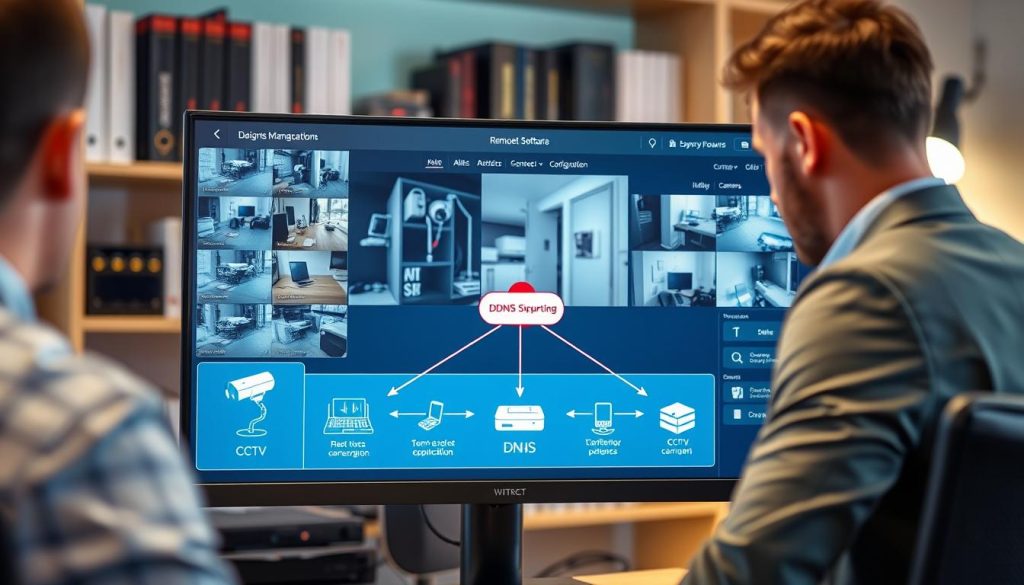
Two powerful technologies extend your capabilities. Dedicated computer software offers a command center for your security system. Dynamic DNS solves the problem of a changing public IP address from your internet provider.
These additional methods provide flexibility. They cater to advanced users and specific home network environments.
Using Dedicated PC or Mac Software for Advanced Management
Manufacturers often provide robust software for Windows or macOS. This turns your computer into a professional surveillance workstation.
The software allows simultaneous viewing of multiple camera feeds on one screen. You get extensive playback controls and deep configuration settings. It is designed for comprehensive system management.
Install the program on your computer from the manufacturer’s website. Launch it and add your CCTV cameras by scanning your network or entering IP addresses.
The interface lets you monitor live footage, export recordings, and set up custom alerts. You can adjust video quality, recording schedules, and motion detection zones with precision.
This desktop approach provides a level of control often unmatched by mobile apps or web browser interfaces.
Make sure your computer and security recorder are on the same local network during setup. This ensures all cameras connected to your DVR or NVR are discovered correctly.
Leveraging Dynamic DNS (DDNS) for Dynamic IP Addresses
Many internet service providers assign dynamic public IP addresses. This means your home‘s internet access point can change, breaking remote access.
Dynamic DNS (DDNS) is a service that fixes this problem. It maps your changing IP to a fixed domain name, like mysecurity.ddns.net.
First, create an account with a DDNS provider such as No-IP or DynDNS. You will receive a unique hostname and login credentials.
Next, enter these DDNS credentials into your NVR, DVR, or router‘s network settings. The device will then automatically update the service whenever your public IP changes.
Once configured, you view CCTV feeds remotely using the hostname. In your web browser, type: http://[your-hostname]:[port number].
This step bypasses the need to constantly look up your current public IP address. Combining DDNS with port forwarding creates a robust and reliable connection.
It ensures you can view security footage from anywhere in the world, regardless of your ISP’s IP assignment policy. These features greatly enhance the flexibility of your remote surveillance setup.
Troubleshooting Common Remote Access Issues
Even the most reliable security systems can occasionally encounter connectivity problems. These issues disrupt remote viewing and cause frustration.
Problems can arise from network settings, hardware faults, or software glitches. This section guides you through fixing common obstacles. You will restore your access to live footage quickly.
Unable to Connect to the Camera from Outside Your Network
A failed remote connection often starts with basic checks. First, make sure your security camera and NVR or DVR are powered on. Verify they are using internet and properly cameras connected to your router.
Next, inspect your port forwarding rules. Log into your router’s admin panel. Confirm the correct camera port is open and directed to the local IP address of your device.
If your public IP changes, consider a Dynamic DNS service. This provides a fixed hostname for your home network. It ensures consistent internet access to your surveillance system.
These steps usually resolve external connection failures. They re-establish the pathway to view security footage from anywhere in the world.
Poor Video Quality, Lag, or No Live Feed Displayed
Streaming problems like lag or choppy video often point to network limitations. Assess your Wi-Fi signal strength and overall bandwidth. A weak connection severely impacts viewing performance.
Adjust your camera‘s settings to lower the resolution and frame rate. This reduces data consumption and improves stream stability. It is a crucial step for smoother remote access.
Outdated firmware can also cause issues. Manufacturers release updates to enhance technology and fix bugs. Regularly update your CCTV camera and recorder software.
If the live feed is completely missing, restart both the camera and your router. This simple action clears temporary glitches. It often restores the video feed instantly.
Forgotten Passwords and Login Problems
Login failures lock you out of your own security system. First, use the password recovery feature in the app or web browser interface. This is the fastest way to regain access.
If recovery is not an option, a factory reset may be necessary. This erases all custom settings and recording schedules. You must then reconfigure your CCTV cameras from scratch.
For delayed alerts, review notification features on your mobile device. Ensure the app has permission to send alerts. Battery-saving modes can sometimes block them.
Systematic troubleshooting of these common issues restores reliable access. You can confidently view CCTV footage and manage your security cameras remotely.
Securing Your Remote CCTV Access from Unauthorized Viewing
Ensuring only authorized eyes see your private footage is the cornerstone of trustworthy surveillance. Remote access is a powerful security feature, but it also creates a potential entry point.
Without proper safeguards, your camera feed could be exposed. Implementing strong digital defenses protects your privacy and the integrity of your entire system.
These measures transform your surveillance setup from a vulnerable endpoint into a fortified asset. Follow these essential practices to lock down your CCTV connection.
Changing Default Passwords and Enabling Encryption
Default login credentials are the weakest link in any security camera setup. Manufacturers use common usernames and passwords like “admin” and “12345”. Hackers know these defaults and scan the internet for exposed devices.
Your first step must be to change them all. This includes every camera, your DVR or NVR, and even your router. Create long, unique passwords combining letters, numbers, and symbols.
Next, activate encryption within your device settings. Look for an option labeled SSL or TLS. Enabling this encrypts the data stream between your phone and the security cameras.
It scrambles the video footage during transmission. Even if someone intercepts the data, they cannot view it. This is a critical layer of protection for your remote viewing sessions.
Keeping Firmware Updated and Monitoring Access Logs
Manufacturers regularly release software updates called firmware. These patches fix discovered security vulnerabilities and add new features. An outdated system is an easy target.
Check for updates in your camera or recorder’s admin menu every few months. Install available updates promptly. This simple habit closes digital doors that intruders might use.
Vigilance is also key. Your CCTV system or router maintains access logs. These records show every connection attempt, including time and IP address.
Review these logs periodically. Look for login attempts from unfamiliar locations or at strange hours. This early warning can reveal a breach attempt before it succeeds.
Make sure your Wi-Fi network uses WPA2-AES encryption. Disable any remote access features or ports you are not actively using.
For the highest level of security, consider using a Virtual Private Network (VPN) to connect to your home network before accessing your CCTV cameras.
Finally, educate everyone who has access credentials. They should never share passwords and must log out after each recording review session. A security system is only as strong as its users’ habits.
Implementing these protocols ensures your remote surveillance remains a reliable tool for protection. It safeguards your property and your peace of mind from digital intrusion.
Gaining Peace of Mind with Remote Surveillance
Modern security is defined by the ability to monitor and respond to events from any location in the world. Remote surveillance provides this powerful assurance. You gain instant access to live video and recorded footage.
This viewing capability integrates seamlessly into daily life. Use a smartphone or computer to check on your home or business. It offers control and visibility wherever you have internet access.
Following the steps in this guide ensures a reliable connection for your system. Proper setup of your DVR, NVR, and network is key. Always prioritize security by updating software and changing default settings.
Surveillance technology continues to evolve with new features. This enhances protection for any property. In Singapore, professional services can simplify installation and support.
Embrace remote viewing to transform your security camera setup. It becomes a dynamic tool for safety and peace of mind.