
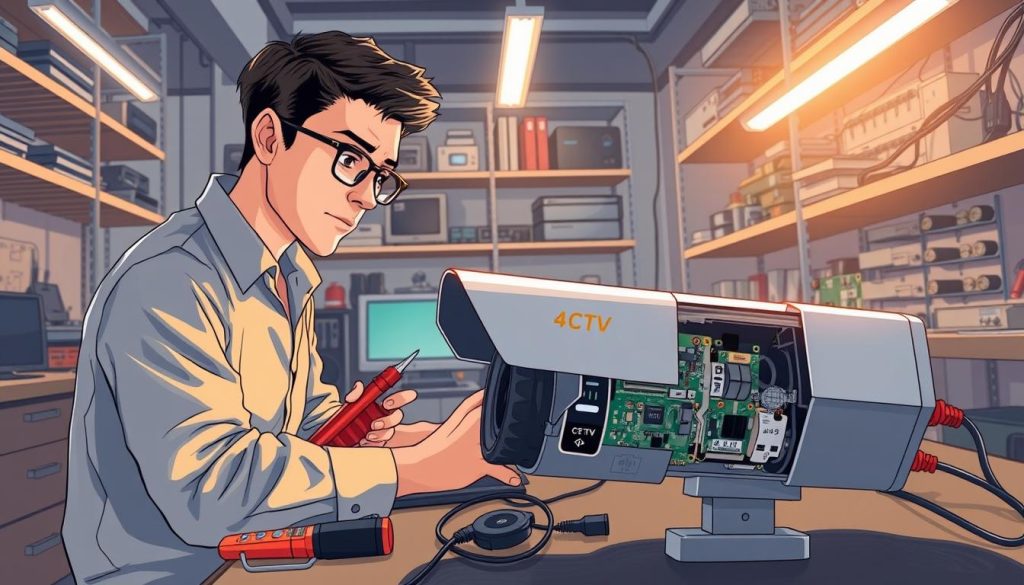
A blank screen where a live feed should be is a major concern. Your property’s security coverage has a gap, creating a vulnerability that needs immediate attention.
This guide provides a clear, step-by-path to diagnose and fix a non-working surveillance camera. We answer the core question facing any property manager or owner.
Professionals use a logical method called “isolate and test.” This process checks each part of your system to find the exact point of failure. It turns a confusing situation into a manageable one.
Your CCTV setup is a network of parts: cameras, power supplies, recorders, cables, and network devices. Effective troubleshooting requires understanding this whole picture.
For readers in Singapore, this article offers actionable steps to restore your security quickly. It helps you decide between a DIY fix and calling for help.
A systematic approach saves time and money. It prevents you from replacing parts that still work. Random checks often lead to more frustration.
The tone here is practical and informational. Whether you’re tech-savvy or just want to understand the problems, this guide is for you. Let’s begin the structured diagnostic journey.
Key Takeaways
- Power supply failures are the most frequent source of camera issues.
- Performing a full system restart can clear many temporary glitches.
- The “isolate and test” method is the professional way to pinpoint problems.
- Regular maintenance schedules prevent many failures before they happen.
- A structured diagnostic process saves money by avoiding unnecessary part replacements.
- Knowing when to call a professional technician is a smart security decision.
Recognizing the Signs of a Dead CCTV Camera
Identifying a malfunctioning security camera starts with observing key visual and functional clues. Early recognition of these symptoms is crucial for a swift resolution. It prevents minor issues from escalating into total failure.
These signs help you pinpoint whether the problem is isolated to one unit or affects the entire system. Knowing what to look for guides your next diagnostic steps efficiently.
Complete Video Loss or Black Screen
A persistent black screen is the most obvious sign of trouble. This total video loss on your monitor or mobile app indicates a break in the chain. The problem could be a dead power supply, a broken cable, or internal camera damage.
Sometimes, the screen may flicker before going completely dark. This intermittent signal often points to a loose connection or failing component.
Non-Functional LED Indicators
Most CCTV cameras have small LED lights for status. A dark or erratically blinking LED is a major red flag. A steady glow usually means power is present and the unit is functioning.
If the light is off, check the power adapter and cables first. An unusual flashing pattern can indicate internal hardware failure or a firmware error needing a reset.
Loss of Recording and Remote Access
Your camera might show a live feed but fail to save footage. This loss of recording history means it’s not communicating with the recorder. The same issue often breaks remote viewing on your phone.
These symptoms point directly to network or NVR communication problems. A simple reboot of the recorder can sometimes restore the connection.
Other subtle signs can also warn of impending failure:
- Intermittent video flickering or distortion
- Discolored or grainy images, especially in daylight
- Night vision or infrared features not activating after dark
- Error messages popping up on your monitoring software
In Singapore’s humid climate, environmental factors play a big role. Heavy rain or sustained high humidity can cause moisture damage inside the housing. This damage often mimics electronic failure, causing foggy lenses or corrosion.
Recognizing these signs is the first step in a logical diagnostic process. It separates a single dead camera from a broader system-wide security lapse. Your observation directs all subsequent troubleshooting efforts.
Your First Response: Immediate Quick Fixes
Before assuming the worst and calling for help, a series of simple checks can often restore your video feed. These immediate troubleshooting steps resolve a significant percentage of apparent failures. They cost nothing but a little time and focus.
Starting here follows a logical guide. It prevents you from diving into complex diagnostics for a simple issue. Always rule out the basics first.
Performing a Complete Visual System Check
Your first action is a thorough physical inspection. Look at every visible cable running to the affected camera. Check for fraying, cuts, or chew marks from animals.
Ensure every connector is fully seated in its port. A loose BNC or Ethernet plug is a common source of video loss. Gently push each one to make sure it’s secure.
In Singapore’s climate, environmental damage is a key concern. Inspect outdoor housings for water intrusion or corrosion. Clear away spider webs, leaves, or dirt blocking the lens. These obvious problems are often the culprit.
The Golden Rule: A Proper Full System Restart
The golden rule for fixing electronic issues is a complete power cycle. Simply turning devices off is not enough.
You must physically unplug all power cords from the wall outlet. This includes the NVR, monitors, camera adapters, and network equipment. Wait at least two minutes.
This full restart clears cached data and resets temporary software glitches. It can resolve data conflicts in the recorder that cause a single channel to go black.
Power up your system in this sequence for stability:
- Network modem and router.
- NVR or DVR recorder.
- Monitoring screen.
- Individual CCTV cameras.
Allow each component to boot fully before switching on the next. This simple procedure is the most effective first step in any troubleshooting scenario. It restores security coverage quickly when it works.
How will you troubleshoot the CCTV system if you have a dead camera?
Effective diagnostics hinge on one critical principle: test each part of your surveillance setup individually. This section moves beyond quick fixes to the professional methodology. It provides a reliable framework for pinpointing the exact cause of failure.
A haphazard approach leads to wasted time and money. Replacing a camera only to find the cable was bad is a common, frustrating mistake. A structured process eliminates this guesswork.
Following a Logical, Step-by-Step Diagnostic Process
The cornerstone of effective troubleshooting is a linear path. You must eliminate variables one by one. This prevents misdiagnosis and ensures you fix the real problem.
Start by creating a mental map of your entire system. Every CCTV installation is a chain of components:
- Individual cameras and their housings
- Data and power cables
- Power supply units and adapters
- The NVR/DVR recorder and its ports
- Network switches and routers
- The monitoring screen or software
Understanding this chain is the first step. Your goal is to find the single broken link causing the video loss.
Isolating and Testing Individual System Components
Never assume a camera is faulty without proof. The professional secret is isolation.
The secret to quickly identifying the item that is causing the issue is to isolate and test each item that comprises the system.
This means testing components separately, not together. For example, use a known-working camera on the suspect cable and power supply.
If the good camera works, the original unit is likely dead. If it also fails, the problem is in the cable, power, or recorder port. This method delivers definitive answers.
It saves significant money by preventing unnecessary part replacements. A simple connection issue should not cost you a new camera.
This isolate-and-test logic forms the backbone of the five major diagnostic steps:
- Power Supply Diagnostics: Checking outlets, adapters, and batteries.
- Investigating Cabling and Connections: Looking for physical damage.
- Physical Hardware Inspection: Assessing weather and environmental damage.
- Reviewing Camera Software and Settings: Restoring defaults and updating.
- Diagnosing Network Problems: Solving WiFi and IP address issues.
Applying this methodical approach turns confusion into a clear action plan. It is the most reliable way to restore your property’s security performance.
Step 1: Comprehensive Power Supply Diagnostics
Over half of all apparent camera failures are resolved by addressing power-related issues. This makes a detailed check of your power supply the most critical first step. A methodical approach here saves significant time and effort.
Your goal is to verify every link in the electrical chain. Start from the wall and work your way to the camera unit itself. A single weak point can cause total video loss.
Checking Wall Outlets and Circuit Breakers
Begin with the most fundamental power source: the electrical outlet. Use a simple device like a lamp to check power availability. If the lamp doesn’t light, the outlet is dead.
Next, inspect your home’s circuit breaker panel. Look for any switches that are tripped to the “off” position. Reset any tripped breakers and test the outlet again. This solves many simple problems.
In Singapore, power surges during storms are common. A tripped breaker is a frequent cause of sudden CCTV failure.
Inspecting Power Cords and Adapters
Visually examine every power cord and adapter block. Look for physical damage like fraying, cuts, or severe kinks. Check connectors for bent pins or corrosion, especially in humid climates.
For cameras with external adapters, use a multimeter to test the output voltage. Match the reading to the label on the adapter (e.g., 12V DC). A significant deviation means the adapter is faulty and needs replacement.
Avoid overloading a single power supply with multiple cameras via a splitter. This can cause voltage drop, leading to intermittent black screens or system reboots.
Testing Battery Health in Wireless Cameras
Wireless and battery-powered security cameras require a different check. Access the camera’s mobile app or software interface. Look for a battery health or status indicator.
Replace batteries that no longer hold a sufficient charge. Monitor the drain rate; a sudden increase can signal a firmware glitch or a failing internal component.
For solar-powered units, ensure the panel is clean and receiving adequate sunlight. A clogged panel cannot recharge the battery properly.
Solving a power issue often instantly revives a non-responsive unit. This step provides the highest diagnostic yield. Always make sure the electrical supply is stable before moving to more complex troubleshooting.
Step 2: Investigating Cabling and Connection Issues
A meticulous examination of all physical links is your next logical move after confirming stable power. Faulty wiring and poor connections are extremely common culprits behind video loss. This step requires a hands-on approach to inspect the pathways that carry data and electricity.
Even a perfect camera and power supply cannot function with a broken cable. A systematic check here can quickly restore your security feed or definitively identify a wiring fault.
Identifying Frayed, Damaged, or Loose Cables
Begin by physically tracing every cable run to the affected camera. Look for obvious signs of damage. This includes frayed insulation, deep cuts, or crushing from being pinched.
In Singapore, environmental factors are a major concern. High humidity can accelerate corrosion inside connectors. Pest activity can also cause chew marks on outdoor cables, severing the signal.
Pay special attention to areas where cables bend or enter conduits. These are stress points where loose connections or breaks often develop over time.
Verifying BNC, Ethernet, and Power Connectors
Connection points are critical failure points. You must make sure every plug is fully seated and locked. A slightly loose connector is a classic cause of intermittent video problems.
For analog CCTV systems, check BNC connectors for a secure twist-lock. For IP security cameras, ensure the Ethernet (RJ45) plug clicks firmly into the port. Inspect all metal contacts for green corrosion or bent pins.
For reliable data transmission over longer runs common in property surveillance, use at least Cat5e or, preferably, Cat6 Ethernet cables.
This prevents signal degradation that leads to choppy footage or total loss. Also, verify the power connector is snug at both the adapter and camera end.
Testing with Alternate Cables to Isolate Faults
The definitive test for a suspect cable is substitution. Use a known-good, working cable in its place. If the camera springs to life, you have found the faulty component.
This “swap test” isolates the issue with certainty. It prevents the costly mistake of replacing a camera that was actually fine. For permanent installations, a cable continuity tester can find hidden breaks inside the sheath.
When running replacement cables, use quality, weatherproof types for outdoor use. Proper cable management secures them away from sharp edges and environmental hazards.
Addressing these connection issues resolves many CCTV problems. If the video feed remains dead after these steps, the problem likely lies within the camera hardware itself.
Step 3: Conducting a Physical Hardware Inspection
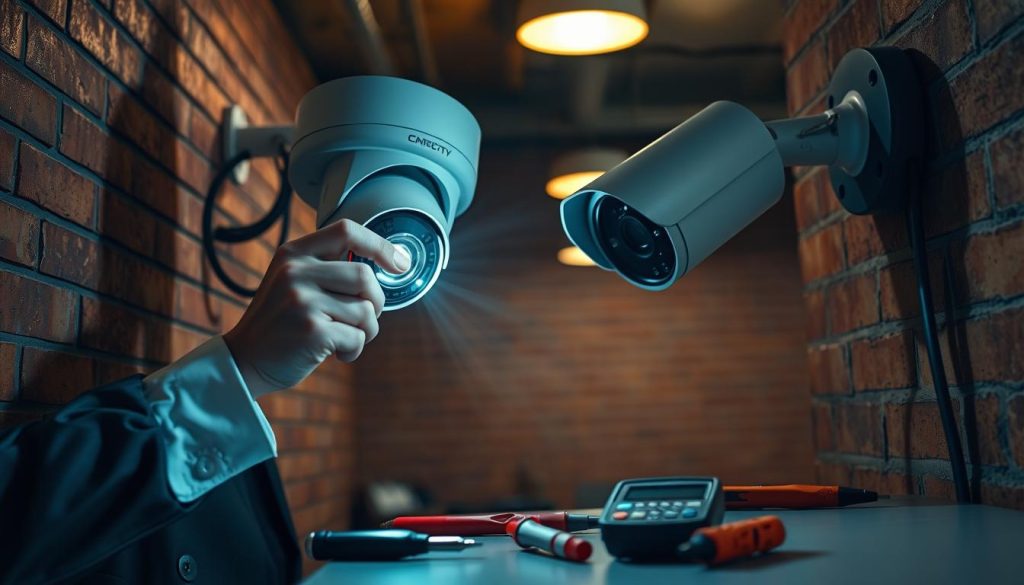
Eliminating power and cable faults leads you to the third critical step. You must now examine the camera for physical damage. This hands-on inspection reveals if environmental stress has compromised the unit.
A thorough visual and tactile check can confirm internal failure. It also identifies problems that might be repairable. This step is crucial for cameras exposed to Singapore’s harsh tropical climate.
Looking for Environmental and Weather Damage
Begin by examining the camera’s exterior and mounting bracket. Look for clear signs of weathering. Rust on metal parts indicates prolonged moisture exposure.
Sun-bleached or cracked plastic housing is another common issue. Ultraviolet rays degrade materials over time. This damage can weaken seals and expose internal electronics.
Check the lens for haze, scratches, or a milky film. Condensation inside a dome housing is a major red flag. It often means the environmental seal has failed.
Checking Camera Housings for Moisture Intrusion
Moisture is the primary enemy of outdoor security cameras. Inspect every seam and gasket on the housing. Look for cracks, gaps, or worn-out seals.
In Singapore’s rainy environment, a compromised seal allows water to seep inside. This leads to internal corrosion and circuit board failure.
Pay close attention to cable entry points. These are frequent leak sources. Ensure the waterproof gland is tight and the cable jacket is not pinched or cracked.
Look for insect nests or spider webs inside the housing. Pests can block sensors and cause short circuits. Regular maintenance cleaning prevents these issues.
Verifying the Integrity of Ports and Sensors
Examine all external ports on the camera. This includes power, data, and audio inputs. Look for bent pins, corrosion, or accumulated dirt.
Debris in a port prevents a solid connection. Use compressed air to gently clean them out. Do not use metal objects that could cause damage.
Inspect the infrared (IR) LEDs around the lens. They should be clean and unobstructed. Dirt or webs over these LEDs cause night vision failure.
Also, check the ambient light sensor. A dirty sensor can confuse the camera’s day/night mode. This hurts overall surveillance performance.
For PTZ cameras, gently test the range of motion. Listen for grinding noises or feel for excessive resistance. Avoid opening sealed units, as this typically voids warranties.
Document any findings with photos. This evidence is valuable for warranty claims. It also helps a CCTV repair specialist in Singapore diagnose the problem quickly.
Step 4: Reviewing Camera Settings and Software
A camera with perfect power and cables can still appear dead due to software misconfigurations. This step moves your diagnostics into the digital control layer of your surveillance system. Software glitches and incorrect settings are common problems that mimic total hardware failure.
A deep dive into menus and versions is often the final key. It can restore your video feed without any physical repair. This guide will walk you through the critical digital checks.
Restoring Default Factory Settings
Corrupted configurations are a frequent source of unexplained issues. Restoring your camera and NVR to factory defaults can wipe these errors clean. This action eliminates incorrect network profiles or corrupted user settings blocking the signal.
The process is usually found in the device’s system menu. You can access it via a direct monitor connection or the manufacturer’s client software. Be aware this will erase all custom configurations.
Always note your current settings before a factory reset. This saves significant reconfiguration time if the reset doesn’t solve the core problem.
After the reset, the devices will reboot. You must then re-add the camera to the NVR’s channel list. This fresh start resolves many baffling CCTV performance issues.
Ensuring Night Vision and IR Features are Enabled
Critical features like night vision can be accidentally disabled. This makes a camera seem dead in low-light conditions. Navigate to the video or display settings in your camera’s menu.
Make sure the infrared (IR) cut filter is set to “Auto” or scheduled correctly. Verify the ambient light sensor isn’t blocked by dirt. Also, check that motion detection zones and schedules are active.
For round-the-clock security, review recording modes. Ensure it’s set to continuous or has appropriate motion-based triggers. An incorrect schedule can create gaps in your surveillance coverage.
Updating Camera Firmware and NVR Software
Outdated firmware is a major source of bugs and instability. Regular firmware updates patch vulnerabilities and improve functionality. They are a key part of proactive system maintenance.
Check the manufacturer’s website for your specific model. Brands like Hikvision or Reolink provide detailed update files and instructions. Make sure you download the correct version to avoid bricking your device.
The update process typically involves these steps:
- Download the firmware file to a USB drive or computer.
- Access the camera or NVR’s system update menu via its interface.
- Select the file and initiate the upgrade.
- Do not power off the device during the process.
After updating, the device will restart. Verify the new version number in the software info panel. Successful firmware updates often resolve compatibility problems and restore missing features.
Also, review basic video settings. Confirm the resolution and frame rate match your recorder’s capabilities. A mismatch here can cause a blank image or choppy feed.
Advanced manufacturer software, like Dahua’s SmartPSS or Hikvision’s iVMS-4200, offers deeper control. These tools can help diagnose communication problems between devices. They provide a clearer picture of your entire CCTV system’s health.
Keeping all software and firmware current ensures optimal security performance. It closes digital gaps just as effectively as fixing a loose cable.
Step 5: Diagnosing Network and Connectivity Problems
When power, cables, and hardware check out, the culprit often lies in the invisible realm of network connectivity. For IP-based CCTV systems, a stable network is the lifeline for video data. Problems here can make a perfectly functional camera appear completely dead.
This final diagnostic step focuses on the digital pathways. It is especially critical for wireless models and systems relying on remote viewing. Solving these issues restores your security feed and ensures reliable performance.
Troubleshooting Weak WiFi Signal Strength
A weak wireless signal is a primary cause of dropouts. Physical obstructions like thick walls or metal fixtures can block the connection. Start by checking your router’s placement relative to the camera.
In Singapore’s dense urban environment, WiFi interference is common. Many networks compete in a crowded frequency spectrum. This creates signal noise and dead zones.
Use a WiFi analyzer app on your phone. It identifies the least congested channel for your router. Switching to this channel can dramatically improve connection stability.
For persistent weak spots, consider a WiFi range extender or a mesh network system. These devices boost coverage to reach distant cameras. They provide a stronger, more consistent signal for continuous streaming.
Examining IP Address Conflicts
IP address conflicts disrupt communication on your network. This happens when two devices get the same IP from the router’s DHCP server. One device will often lose its connection entirely.
Access your router’s admin panel through a web browser. Look for a list of connected devices. Check if any share the same IP address.
Assigning static IP addresses to your critical security cameras prevents this problem. It ensures each unit always has a unique, unchanging address on the network.
You can set a static IP in the camera’s own network software settings. Alternatively, configure your router to reserve an IP for the camera’s MAC address. This is a key step for reliable surveillance.
Pinging Your Camera’s IP Address
The “ping” command is a fundamental network diagnostic tool. It tests basic connectivity between your computer and the camera. First, you need to find your camera’s IP address.
Check your NVR’s device management menu or the manufacturer’s mobile app. The IP will be listed there. Write it down.
On a Windows PC, open Command Prompt. On a Mac, open Terminal. Type ping [camera's IP address] and press Enter.
Interpret the results carefully. A successful reply shows packets sent and received with low time. Packet loss or “Request timed out” messages indicate a broken connection.
This test confirms whether the network path to the camera is alive. If the ping fails, the issue could be a faulty cable, a dead switch port, or incorrect network settings on the camera itself.
Other network problems include incorrect subnet masks or gateway settings. A misconfigured firewall can also block the ports your CCTV system uses.
For wired IP cameras, ensure the Ethernet cable plugs into a powered PoE port. Verify the network switch or injector is functioning. A simple swap to a known-good port can isolate the fault.
Solving these network issues often fully restores remote viewing and recording. It closes the final gap in your diagnostic process. Your security system regains its full performance and reliability.
When DIY Isn’t Enough: Seeking Professional CCTV Repair in Singapore
Even the most diligent DIY approach can hit a wall, signaling the need for specialized expertise. Your systematic guide has covered all common issues. Some persistent problems require tools and knowledge beyond typical home maintenance.
Recognizing this limit is a smart security decision. It protects your investment and ensures reliable surveillance. Calling for professional help in Singapore restores coverage quickly and correctly.
Identifying Issues That Require Expert Intervention
Certain failures are clear signs to stop DIY efforts. Internal circuit board damage is a primary example. No amount of rebooting fixes a burnt capacitor or corroded trace.
Complex network configuration for multi-site systems also demands a pro. Setting up VLANs or managing enterprise-grade switches is not basic. Water intrusion causing component failure needs delicate, specialized repair.
Recurring faults after all DIY steps point to a hidden root cause. A technician’s advanced diagnostics find what you missed. This saves immense time and prevents further damage.
The Benefits of Professional Diagnosis and Repair
Expert intervention brings multiple advantages. Technicians use advanced tools like network analyzers and multimeters. They pinpoint faults with absolute accuracy, avoiding guesswork.
Safety is another major benefit. Professionals handle live electrical components and high PoE voltages safely. They also access genuine replacement parts and official firmware updates.
Engaging a specialist service like CCTV Maintenance at +65 60135960 provides innovative solutions and expert support tailored to Singapore’s unique environment.
A comprehensive service includes full system health checks. Technicians optimize camera angles for maximum coverage. They adjust software settings for peak performance.
This proactive maintenance prevents future downtime. It is a cost-effective strategy for long-term reliability. For property owners, this means uninterrupted security.
Choosing the right service in Singapore involves a few checks. Look for certified technicians with brand-specific training. Ensure they offer service warranties on their work.
Discuss the cost-benefit of repair versus replacement openly. Often, professional repair extends a camera’s life at a fraction of the new unit cost. Regular maintenance contracts can lock in this value.
Knowing when to call is responsible ownership. It closes the final gap in your troubleshooting journey. Your property’s surveillance stays robust and dependable.
Ensuring Ongoing Security with Proactive System Maintenance
Proactive care transforms your security setup from a reactive tool into a dependable shield. Implementing a schedule for regular maintenance is essential. This prevents unexpected system failures before they occur.
Your maintenance routine should include visual inspections of all cameras and cables. Clean lenses and housings to ensure clear surveillance footage. Periodically check power supplies and test network connections for stability.
Stay disciplined with firmware updates. These patches fix security vulnerabilities and boost performance. Document your system layout, including model numbers, to speed up future troubleshooting.
For comprehensive support, establish a relationship with a trusted local provider. Annual professional check-ups identify degrading components early. This proactive approach turns your CCTV network into a resilient asset for your Singapore property. To further understand why a CCTV camera suddenly stopped working, visit our detailed guide.