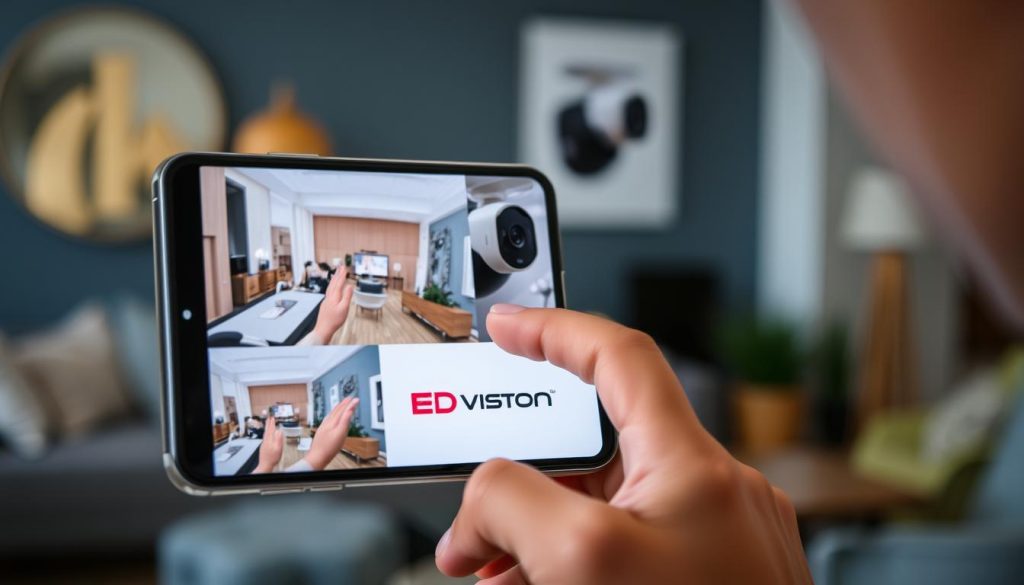
Control Cameras on Phone: Easy Setup Guide
Ever thought about controlling security cameras on your phone from anywhere? Today, security is key, and watching your surroundings from afar is a must. This guide will show you how to link your cameras to your phone easily. With apps from Google Nest, Wyze, and Ring, you’ll see how tech keeps you safe. Key Takeaways Top security camera brands have apps for easy phone connection. Use apps like AlfredCamera for free to manage your footage. Quick setup with QR codes is available for your cameras. Make sure your camera and phone are on the same Wi-Fi for best results. Trust Circle lets you share camera access with others for more security. Good Wi-Fi and light are important for setting up your cameras. For the latest in CCTV, call ED Viston at +65 8313 4578. Understanding Smartphone Security Camera Integration Connecting security cameras to smartphones is a big step forward in home surveillance. It lets users watch their homes live, from anywhere, at any time. More devices are now linking up with smartphones, showing how common this tech is becoming. Benefits of Connecting Security Cameras to Your Phone There are many good things about linking security cameras to phones. Users get: Remote Monitoring: Watch live video from anywhere, giving you peace of mind. Easy Setup: Apps are easy to use, making it simple to set up your system. Cloud Storage: Many systems save footage in the cloud. You can get it back when you need it. Real-time Alerts: Get alerts right away when the cameras spot something odd. Enhanced Viewing: Smartphones like the HONOR Magic V2 have great screens for clear video. Common Devices for Smartphone Integration Many devices work with smartphone apps. Some examples are: Device Type WiFi Connectivity Smartphone App Wi-Fi Cameras Yes Manufacturer’s App Smart Doorbells Yes Brand App NVR Systems Yes QR Code Access Thermal Cameras Varies Compatible App Using smartphones with security cameras makes homes safer. It also lets users keep an eye on things. For the latest in CCTV tech and deals, call ED Viston at +65 8313 4578. How to Choose the Right Security Camera App Choosing the right security camera app is key to a great experience. There are many options out there. It’s important to know what features to look for to make a good choice. Look for apps that are easy to use, have good cloud storage, and work well with motion detection. Also, make sure they work with different camera models. This gives you more options. Features to Look For in Mobile Apps When picking a security camera app, think about these features: User-Friendly Interface: A simple design makes the app easy to use. Motion Detection: Get alerts for any activity, so you don’t have to check constantly. Cloud Storage Options: Easily access your footage, keeping it safe for later. Two-Way Audio: Talk through the app for better communication. Smart Home Compatibility: Work with devices like Google Assistant for a seamless experience. Popular Security Camera Apps In 2024, some top security camera apps include: App Name Features Best For Alfred Home Security Camera Budget-friendly, repurposes old phones Cost-conscious users Wyze Professional-quality features, free cloud storage Real-time monitoring enthusiasts Reolink Excellent video quality, smart home integration Smart home users Manything Turn old phones into cameras Recycling tech-savvy users AtHome Camera User-friendly, versatile functionalities Casual users Zmodo Affordable, reliable options Budget-selective consumers For more info and the latest CCTV solutions & offers, call ED Viston at +65 8313 4578. How do I get my security cameras to work on my phone? Setting up your security cameras to work with your phone can really boost your security. Many modern cameras, like IP cameras, make this easy. You can watch over your place from anywhere with mobile connectivity. Just follow some simple steps and check if your devices are compatible. Step-by-Step Setup Instructions Connect your camera to Wi-Fi: Make sure your camera is connected to your home Wi-Fi. Download the appropriate app: Get the app from your phone’s store, like iDVR-PRO Viewer for iOS. Add your security camera: Open the app and add your camera. You might need to scan a QR code or enter your camera’s model. View live feed: After adding, you can see the live video on your phone. Set configurations: Change camera settings to fit your needs, like notifications and recording. Compatibility Check with Your Phone Before you start, check if your phone and camera are compatible. Most good cameras work with iOS and Android. But, some apps might not work on all phones, like Windows phones. Make sure your chosen system works well on your phone. Common problems include internet issues or wrong IP addresses. Try rebooting your devices if you have trouble. A strong internet connection is key for your cameras to work wirelessly. Need help with CCTV solutions or offers? Call ED Viston at +65 8313 4578 today. Setting Up Remote Viewing for Security Cameras To set up remote viewing for security cameras, you need to follow a few key steps. This lets you watch your property from anywhere. It involves setting up your home network for cameras and making sure you can access them on mobile devices. Configuring Your Home Network First, you must configure your home network for security cameras. This step is important to connect your cameras to the internet. Here are the main points: Secure Wi-Fi Connection: Use a strong password and WPA3 encryption to secure your home network. Port Forwarding: Set up port forwarding on your router, commonly using port numbers 80 and 554, to allow external access to your cameras. DDNS Services: Utilize Dynamic Domain Name System (DDNS) to assign a hostname to your camera, simplifying remote access without needing to remember IP addresses. P2P Technology: Implement peer-to-peer (P2P) connections to enable seamless remote access to cameras from any location. Accessing Cameras on Mobile Devices After setting up your network, accessing cameras on mobile devices is easy. You can use different apps and services for monitoring. Here’s how: Mobile Applications:
Control Cameras on Phone: Easy Setup Guide Read More »